After successfully connecting your Android box to Wi-Fi:
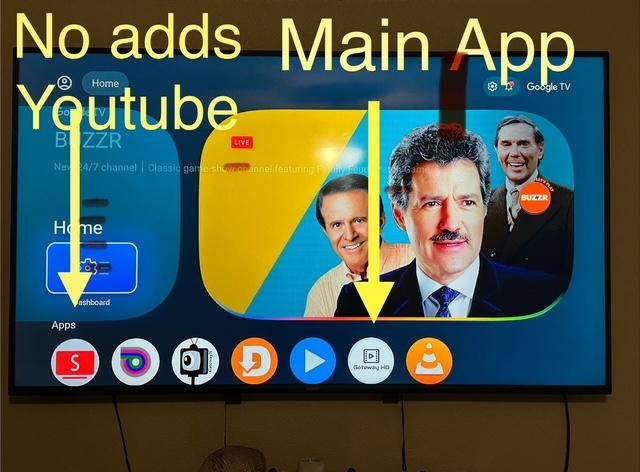
- Open the GatewayHD app (usually located in the center of your home screen).
- Tap the app — it will begin updating Live TV content (this may take a few moments).
- Once complete, go to the Movies and Series sections to load their content.
Note: If you have a VOD (Video on Demand) subscription, switch to that account inside the app and repeat the update process.
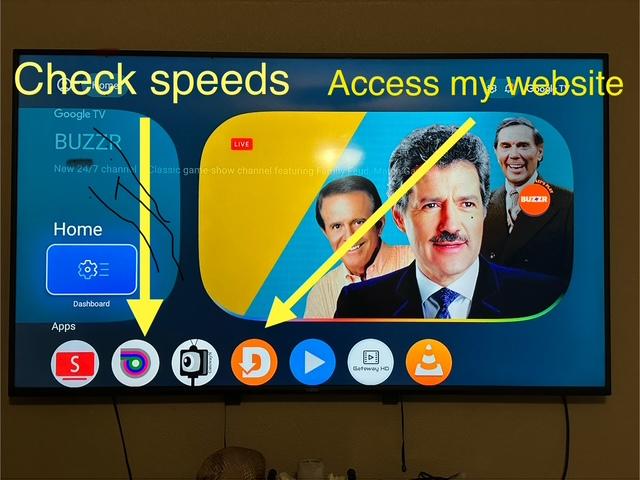
App Preview
Account Types
- KTV – Live TV account
- VOD – Movies and Series account
- BTV – Backup account (use during outages)
How to Add or Switch Accounts
- From the app home screen, scroll to the top-right corner to open the hidden menu.
- Select Switch Playlist.
- Select Add Playlist.
- Enter:
- Anyname: Name of account (from your email)
- User: Username
- Password: Password
- Click Add Playlist.
Repeat this process to add all three accounts.
Reminder: When logged into KTV, Movies will not be available. When logged into VOD, Live TV will not be available.
Video Overview
Watch a walkthrough of the app: Click here to watch
Note: The video may look slightly different, but functionality is the same.
Need Help?
If you have any questions, please contact JB via text or WhatsApp.